
Every marketing team needs a clear system to manage multiple projects and deadlines. A content calendar helps you organize campaigns, track progress, and ensure nothing slips through the cracks.
With TeamBoard ProScheduler, you can coordinate your marketing work from planning and scheduling to publishing and reporting, all within one visual calendar built for productive teams.
The Challenge
Let’s imagine a marketing team that handles several types of content: blog articles, social media campaigns, video tutorials, and newsletters. Each one has its own deadlines and team members involved, copywriters, designers, editors, and managers.
At first, they use spreadsheets and shared folders. Each campaign has its own file, and every update requires sending messages or emails. Soon, confusion starts to grow.
Some of the common problems include:
- No single view of everything that’s happening: Each channel has its own tracker, so it’s hard to see the full picture.
- Unclear ownership: People are unsure who is working on what.
- Missed or overlapping deadlines: Two posts go out on the same day, while another one gets delayed because the design wasn’t ready.
- Poor workload visibility: Some team members have too much work, while others have free time.
- Constant rescheduling: Every time priorities shift, someone must manually update the spreadsheet and inform everyone.
These challenges don’t come from poor planning, they come from using the wrong tools. The team needs a flexible system that shows every piece of content, who is doing it, and when it’s due. They need something visual, simple, and connected to their actual project management workflow.
Steps to Create a Marketing Content Calendar in ProScheduler
Building a marketing content calendar in TeamBoard ProScheduler helps your team plan, schedule, and track every campaign in one organized place.
Follow these simple steps to set up your calendar, manage workloads, and keep your marketing projects running smoothly:
Step 1. Set up your marketing project
Start by creating your marketing project in Jira and name it something like “Marketing 2025 Campaigns” or “Monthly Content Calendar.”
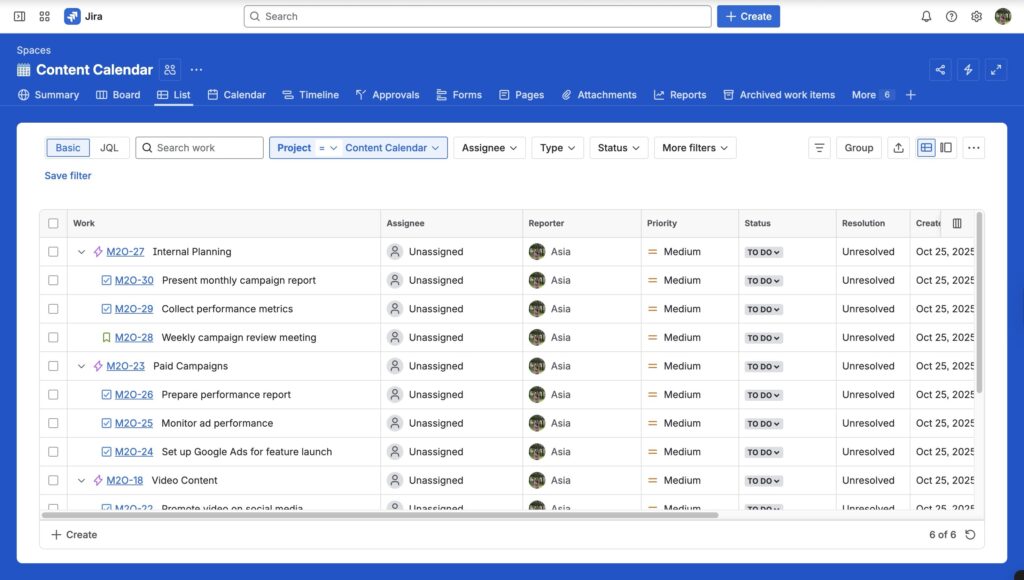
Create a marketing project in Jira
Add all the content tasks you plan to manage for the month, such as blog posts, social media updates, newsletters, or videos. To keep your workflow organized, define stages like Draft, In Review, Scheduled, and Published. These stages help your team see the progress of each piece of content at a glance.
Once your tasks are ready, open TeamBoard ProScheduler, select your Jira project, and begin visualizing your content calendar. From here, you can plan, assign, and track every content activity in one place.
Step 2: Plan tasks on the Schedule Board
Once your project and content tasks are set up, it’s time to start planning them on the Schedule Board. This view gives you a clear picture of your team’s workload and helps you allocate resources effectively. You can see who is working on what, identify open capacity, and balance assignments to keep everything on track.
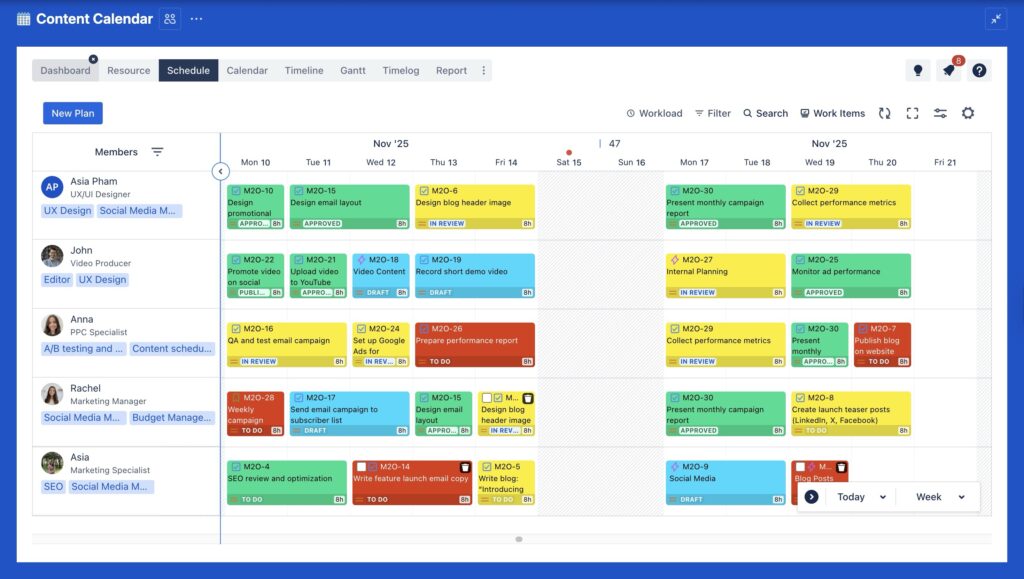
With the drag-and-drop feature, you can move tasks across the timeline, adjust deadlines, or reassign work between team members as plans evolve. This flexibility helps your team stay responsive to shifting priorities without losing focus.
To plan a task:
- Click to open the Work Item box. This panel displays all your tasks in the backlog.
- Use the search bar or filters to quickly locate the specific task you need to plan.
- Simply drag the task onto the team member and the specific date on the timeline where you want it scheduled.
PRO TIP: You can also create Generic Resources (e.g., “Design Team,” “Copywriter,” or “Social Media”) as placeholders if you haven’t finalized team assignments yet. This helps in early planning and resource forecasting.
Step 3: Visualize the tasks on the Calendar Board
Once your tasks are scheduled, switch to the Calendar Board to get a clear, high-level view of your content plan. This view organizes all tasks, deadlines, and milestones into a familiar daily, weekly, or monthly calendar layout, helping you see how your marketing activities align across different timelines.
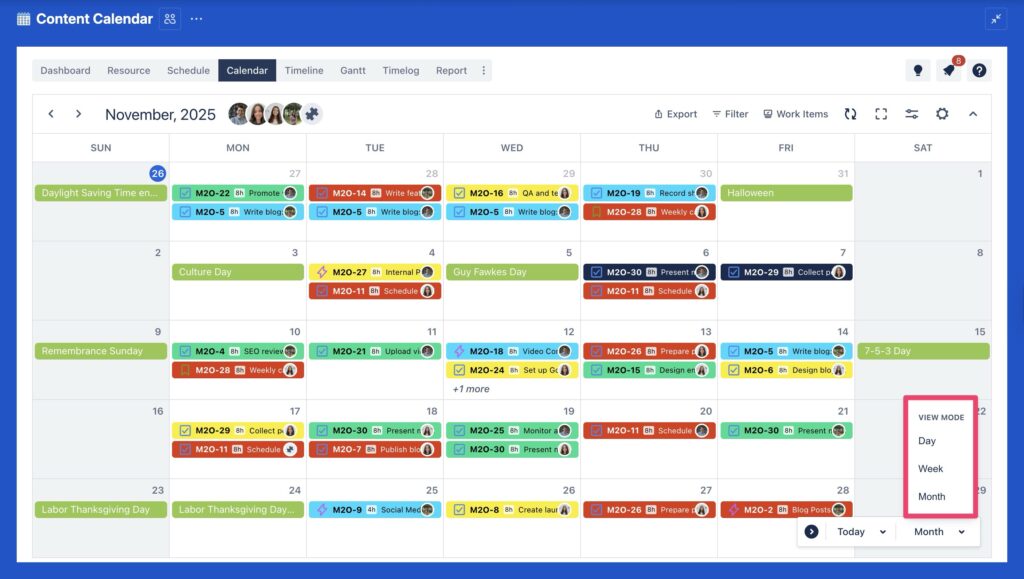
- View Tasks: Your calendar now displays all marketing content plans in a single, visual timeline. Click on any task in the calendar to view its details, update deadlines, or make changes.
- Adjust the View: You can easily switch between daily, weekly, monthly, or a custom timeframe to match your planning needs. This flexibility allows you to tailor your view to your project’s current demands and team preferences.
You can also drag and drop tasks directly on the calendar to easily reschedule them, ensuring that your project timeline remains flexible and up-to-date.
Apply filters to view specific campaigns or team members, helping you balance workload and avoid overlapping deadlines.
Step 4: Manage Leave and Time-Off
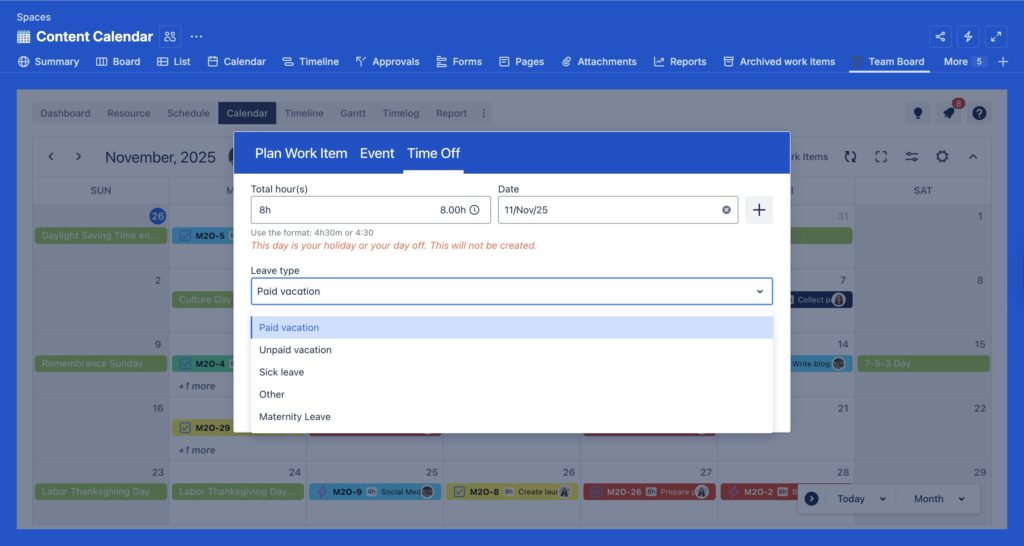
Keeping track of team availability is an important part of content planning. Use the Schedule Board or Calendar View to see holidays, days off, and vacations alongside ongoing tasks.
Simply add time-off events to get a clear picture of your team’s capacity. This visibility helps you plan workloads accurately, prevent scheduling conflicts, and keep projects on track even when team members are out of the office.
Step 5: Collaborate and Track Progress
Smooth collaboration is key to keeping marketing projects on track. With multiple people working on content, design, and approvals, communication gaps can easily slow things down. This step helps your team stay connected, share feedback, and track progress so everyone stays aligned from start to publish.
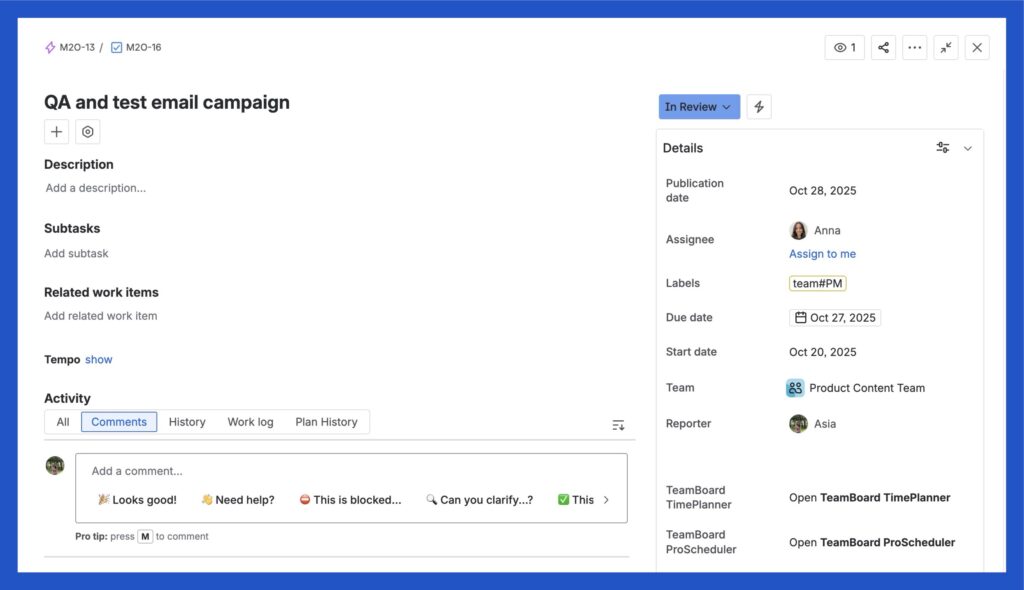
- Add Comments and Attachments: Attach feedback, creative assets, and approvals directly to tasks. This centralizes all communications and keeps everything in one place.
- Use Priority Flags: Apply priority flags (Urgent, High, Normal, Low) to help your team focus on the most critical tasks first, ensuring important deadlines are met and workflows stay streamlined.
- Track Task Progress: Monitor task status in real-time (Drafting → In Review → Published), ensuring everyone is aligned on progress and deadlines.
Step 6: Manage Workload
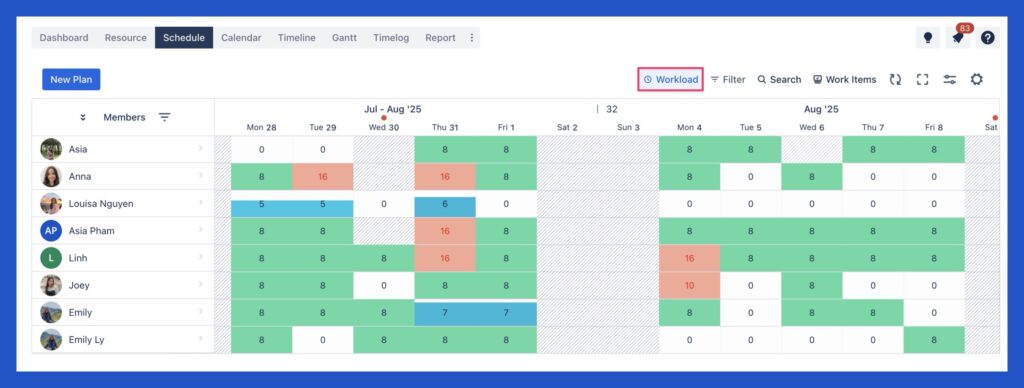
Workload management helps you see how tasks are distributed across your team so you can plan resources effectively. Use the Workload View in ProScheduler to check who is fully booked, available, or has capacity for new assignments.
This visibility lets you balance workloads, prevent burnout, and keep all content projects on schedule, even when multiple campaigns are running at the same time.
Step 7: Organize Projects with Programs
If you manage several marketing campaigns or content calendars, the Program View helps you keep everything organized in one place. You can group projects by month, region, or campaign type and easily review their overall status, key milestones, and owners.
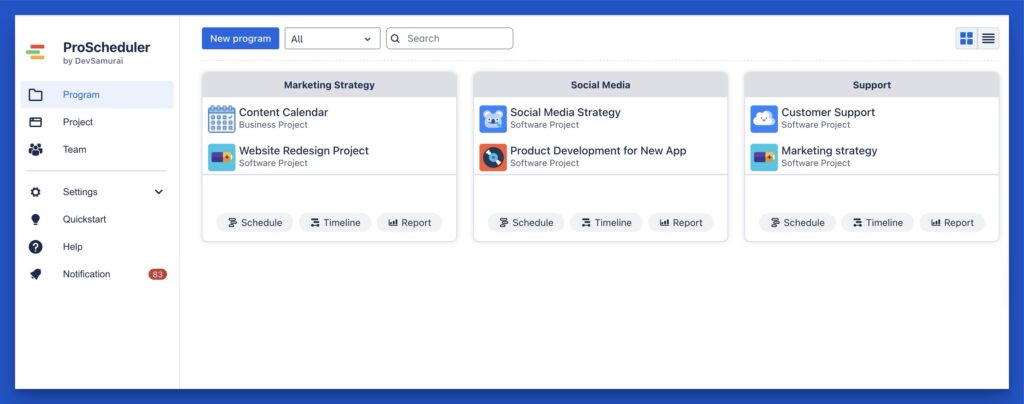
This view gives managers and team leads a clear, high-level perspective of how all marketing activities align. It helps track progress across projects, compare performance, and ensure consistency in planning and execution across the entire team.
Conclusion
Managing marketing campaigns becomes much easier with a content calendar that keeps everything connected. ProScheduler helps your team coordinate work, balance workloads, and stay on top of publishing timelines. With a clear view of what’s planned, in progress, and completed, you can make faster decisions and keep every project moving forward efficiently.