
Effective project scheduling often requires more than just managing tasks inside Jira. Many teams also use external calendar tools like Google Calendar, Outlook, or Apple Calendar to manage meetings, deadlines, and personal events.
With TeamBoard ProScheduler, you can easily connect your project tasks to your favorite calendar tools through the ICS Feed export, ensuring that your schedules stay visible across all platforms you use daily.
What are Google, Outlook, and Apple Calendars
These are the most popular scheduling tools used by professionals and organizations around the world.
- Google Calendar: A cloud-based calendar that supports collaborative scheduling and reminders across devices.
- Outlook Calendar: Integrated with Microsoft 365, ideal for managing meetings, emails, and work events in business environments.
- Apple Calendar: A built-in macOS and iOS application that syncs events across Apple devices through iCloud.
Each of these platforms helps you organize your time effectively. Integrating them with TeamBoard ProScheduler allows you to align your project and personal commitments in one view.
What is Calendar Board in TeamBoard ProScheduler
The Calendar Board in TeamBoard ProScheduler provides an interactive and highly visual display in a traditional calendar layout, offering daily, weekly, and monthly views for easy planning and tracking of project tasks, events, holidays, and deadlines.
Key Features and Functionalities
- Visual Overview: Presents a clear, high-level view of all scheduled activities, helping users quickly see when tasks or events are planned, their duration, and any potential overlaps.
- Interactive Planning: Allows users to schedule, reschedule, and adjust tasks or events using a simple drag-and-drop interface directly within the calendar view.
- Comprehensive Information Display: Displays not only project tasks and deadlines but also key events, public holidays, and team members’ days off or vacations, providing a complete picture of team availability.
- External Calendar Integration: Supports exporting tasks and appointments as an ICS feed, enabling integration with external calendars such as Google Calendar, Microsoft Outlook, and Apple Calendar for seamless schedule management.
What is an ICS File?
An ICS file (short for iCalendar file) is a standard calendar file format used to store and share scheduling information such as events, meetings, and tasks. ICS files make it easy to exchange calendar data between different applications like Google Calendar, Microsoft Outlook, Apple Calendar, and other scheduling tools.
Typically, an ICS file contains event details including the date, time, location, description, attendees, and reminder settings. Users can import or export ICS files to quickly add events to their calendars or share them with others.
Why Integrate ProScheduler with Other Calendar Tools
Most teams already use an external calendar to manage meetings, holidays, and personal activities. However, Jira tasks often remain separate from these schedules. By connecting your ProScheduler tasks with Google, Outlook, or Apple Calendar, you can:
1. See Everything in One Place
Without integration, users often need to switch between Jira to check project tasks and a separate calendar for meetings and personal events. Integrating ProScheduler allows you to consolidate all schedules in one central view, so you can clearly see when tasks, meetings, and deadlines overlap.
2. Avoid Schedule Conflicts
When project tasks are disconnected from team calendars, managers might unintentionally assign work during meetings, vacations, or holidays. Integration provides a transparent overview of all activities across the team, allowing you to spot potential overlaps and prevent overbooking of resources.
3. Improve Productivity and Focus
A connected schedule helps you plan your day realistically by combining task deadlines with meeting schedules. When all commitments appear together, it’s easier to allocate uninterrupted time blocks for focused work, prepare for meetings in advance, and make better use of working hours.
4. Share Visibility Externally
Not everyone involved in a project has access to Jira. With calendar integration, you can share your ProScheduler tasks externally so that clients, stakeholders, or cross-functional partners can view planned work directly through a shared calendar.
Use Case 1: Managing Project Tasks Alongside Daily Activities in External Calendars
Why you need it
You may use Google Calendar or Outlook to manage your daily events, but your Jira project tasks live separately in ProScheduler. This separation can make it harder to prioritize work or manage time effectively.
How ProScheduler helps
TeamBoard ProScheduler allows you to export scheduled tasks as an ICS file, which can be imported into popular calendar tools such as Google Calendar, Outlook, and Apple Calendar.
After importing, your project tasks appear as all-day events, displayed alongside your other personal and work-related appointments.
Step 1: Export Tasks from ProScheduler
1. Open the Calendar Board in TeamBoard ProScheduler.
2. Click the Export (ICS) button located on the top-right corner of the board.
3. Select the desired date range for export.
4. Click Export to generate and download the ICS file to your device.
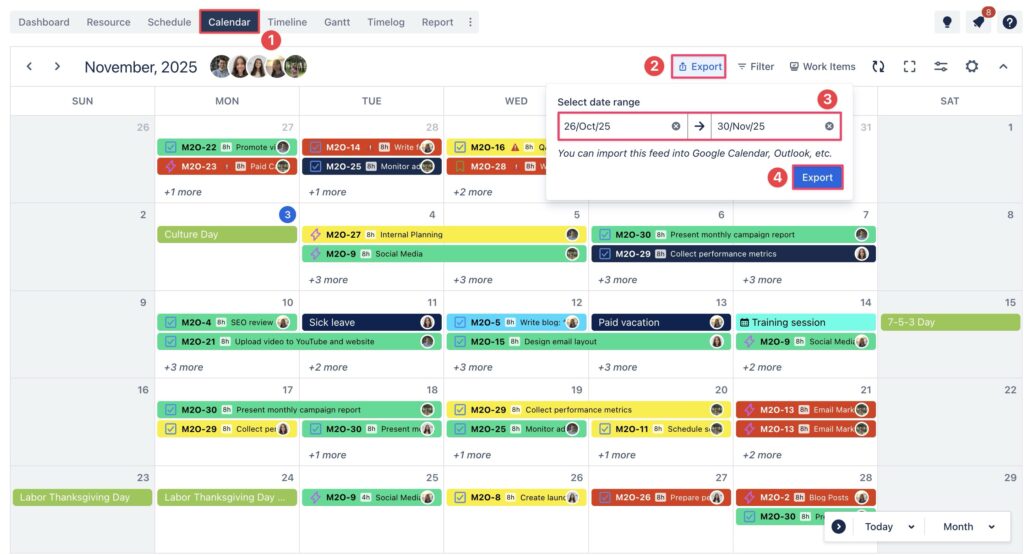
Your file is now ready to be imported into any external calendar application that supports the ICS format.
Step 2: Import into External Calendar Tools
You can import the exported ICS file into your preferred calendar application:
Import into Google Calendar
1. Open Google Calendar in your browser.
2. Click the ⚙️ Settings icon in the top-right corner and select Settings.
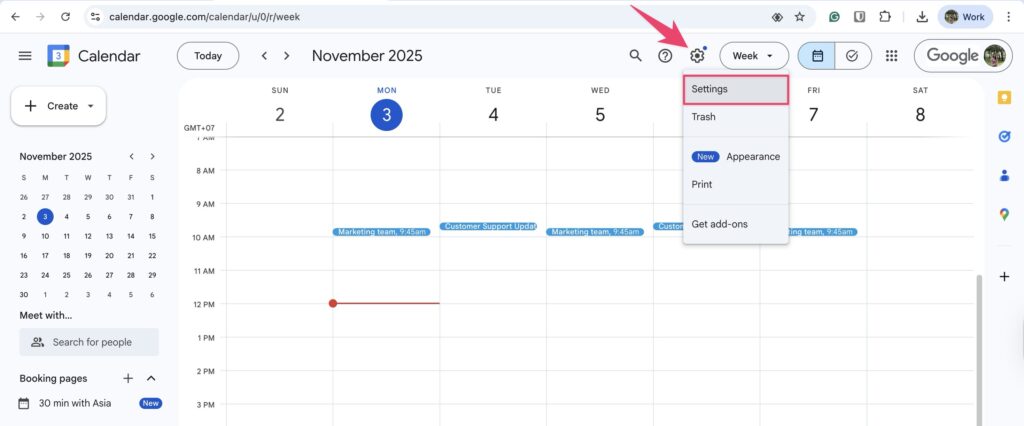
3. From the left sidebar, choose Import & Export.
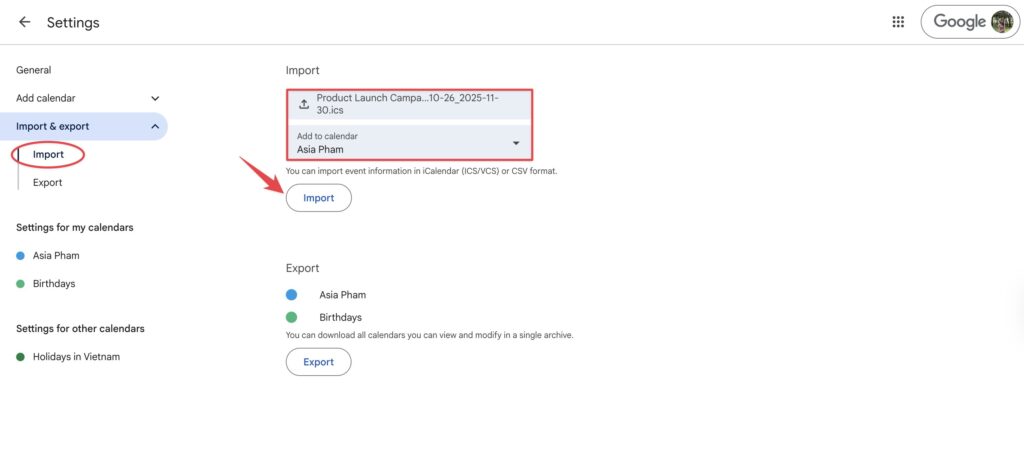
4. Under the Import section, click Select file from your computer and choose the exported .ics file.
5. Select the calendar where you want to add your ProScheduler tasks.
6. Click Import to complete.
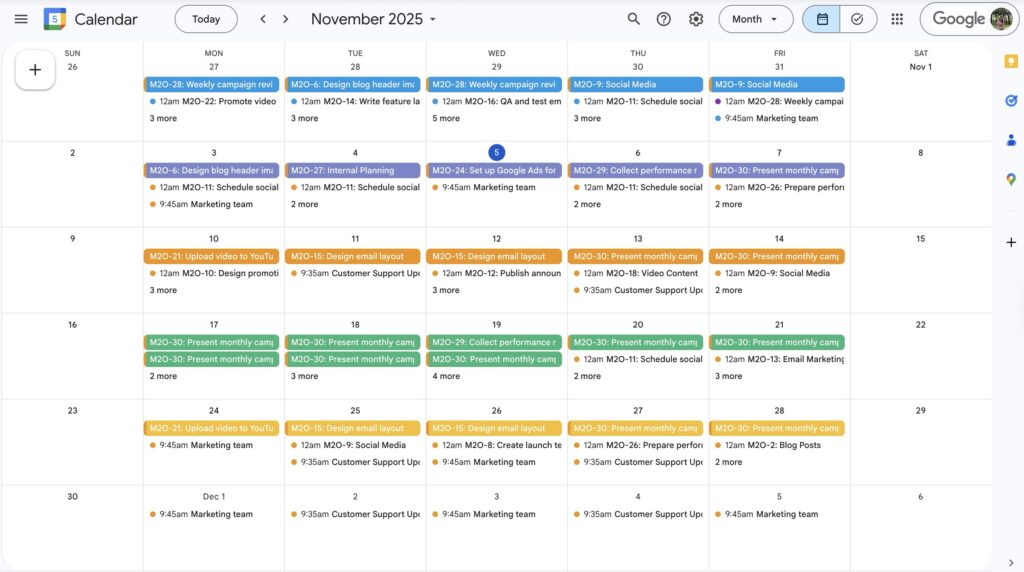
✅ After importing the ICS file into Google Calendar, your ProScheduler tasks will appear as all-day events, displayed alongside your other calendar entries: 👇
Import into Outlook Calendar
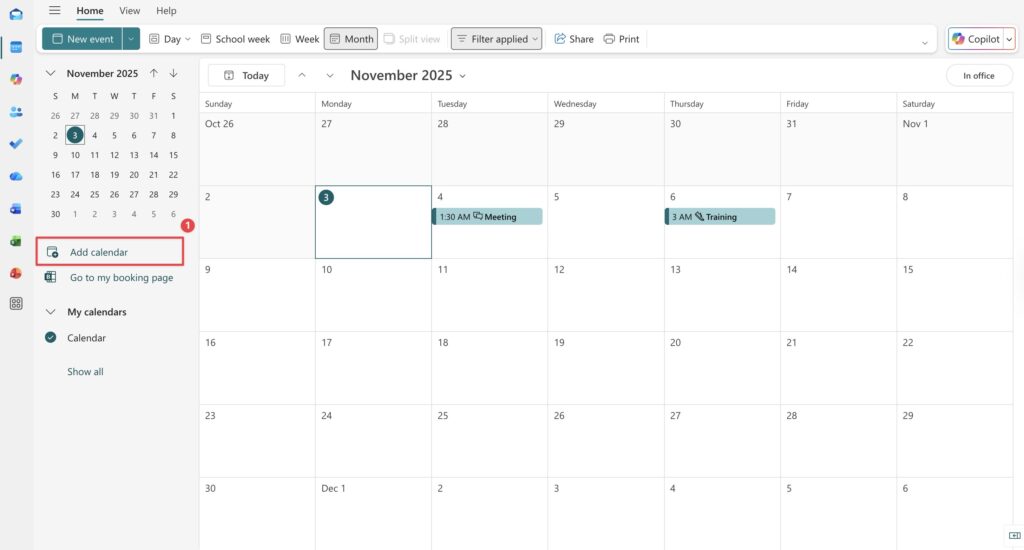
1. Open Outlook Calendar and click Add calendar in the sidebar.
2. Choose Upload from file from the options.
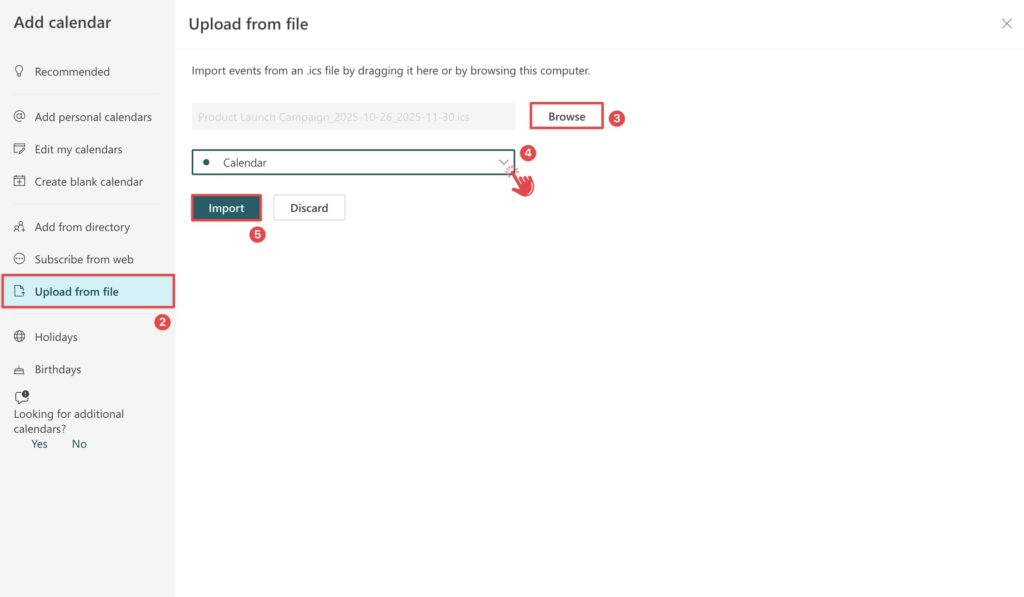
3. Click Browse, select your .ics file, and then click Open.
4. Choose the calendar destination.
5. Click Import button to finalize.
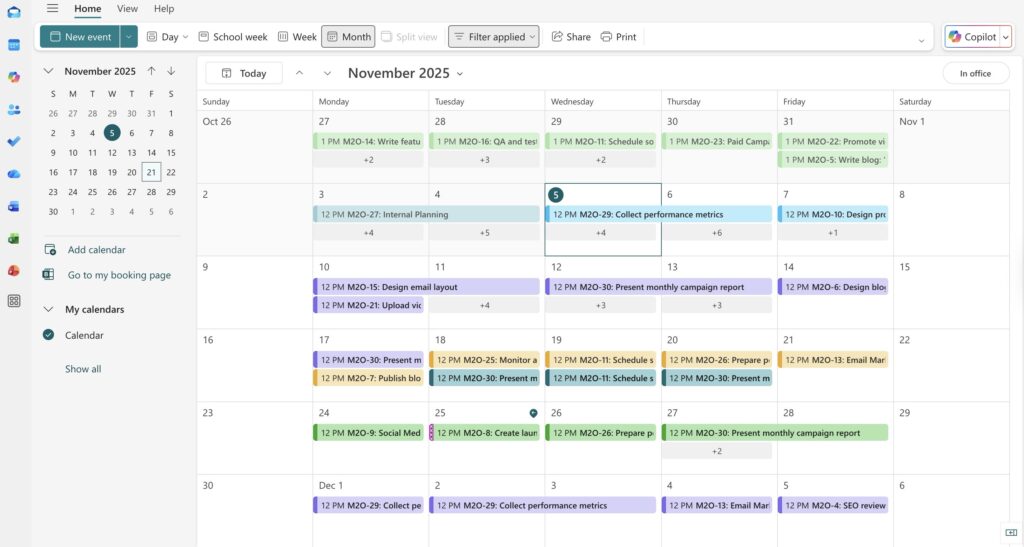
✅ Your imported events will now appear in Outlook Calendar:
Import into Apple Calendar (macOS)
1. Open the Calendar app on your Mac. Click File on the menu bar and select Import from the drop-down menu.
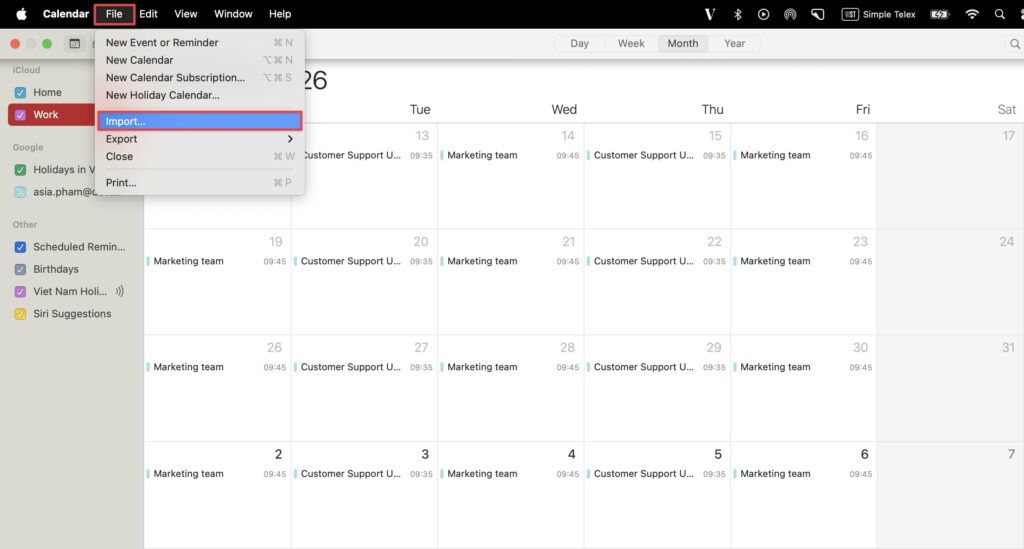
2. Locate and select the ICS file you want to import, then click Import.
3. Choose which calendar to add the events to, or select New Calendar to create a separate one.
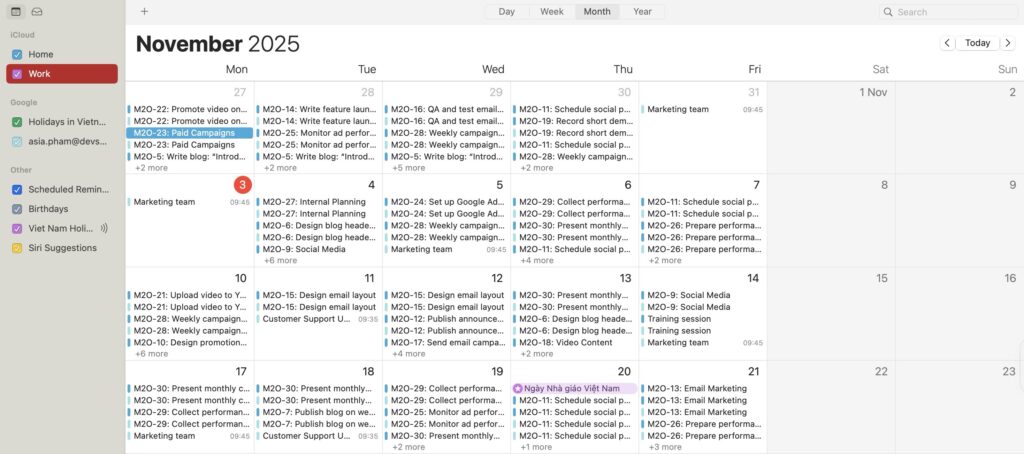
Once completed, your ProScheduler tasks will appear in your external calendar as all-day events, integrated with your other activities for a complete overview of your schedule.
Use Case 2: Reflecting External Meetings and Events Inside ProScheduler
Why You Need It
In most organizations, meetings, holidays, and business events are scheduled through external calendar tools such as Google Calendar or Outlook. When these events are not visible in TeamBoard ProScheduler, project managers or team members may unintentionally assign work during meetings, vacations, or unavailable periods.
Having visibility of these external commitments inside ProScheduler helps ensure that project scheduling remains accurate and that resource planning reflects real team availability.
How ProScheduler Helps
You can easily represent external meetings, holidays, or events in TeamBoard ProScheduler using built-in features. These visual indicators provide a complete and realistic picture of your team’s availability and help maintain accurate project timelines.
-
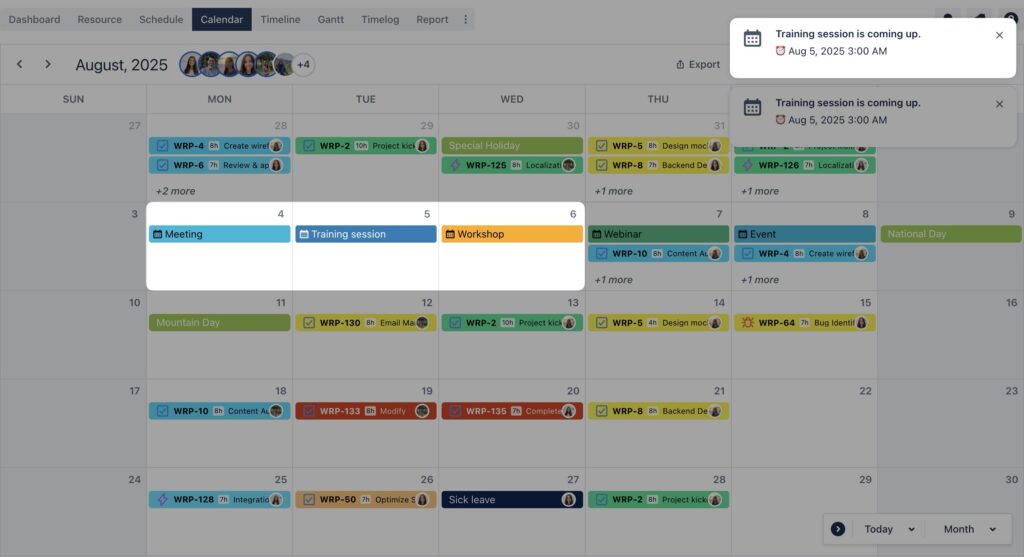
Create Events as Non-Project Tasks: Add meetings, company events, or personal activities directly on the Calendar Board as non-project tasks. You can invite multiple members to join the event, and it will automatically appear on their boards. Notifications can also be sent to remind attendees of upcoming events.
-
Apply Holiday and Workload Settings: Configure holidays, non-working days, and time-off rules so the system automatically prevents task assignments during unavailable periods. This ensures realistic planning and helps maintain balanced workloads across the team.
Together, these tools help you align project plans with real-world schedules and prevent conflicts between project work and external activities.
Conclusion
Integrating TeamBoard ProScheduler with external calendar tools such as Google Calendar, Outlook, and Apple Calendar helps teams stay organized and aligned across every aspect of their work. By connecting project tasks with daily meetings and personal events, users gain a unified view of their schedules, allowing for smarter planning and better time management.
With these capabilities, teams can reduce scheduling conflicts, enhance productivity, and maintain full visibility of their work—all within the familiar Jira environment powered by TeamBoard ProScheduler.